KaizenAlertLine
KaizenAlertLine watches every horizontal line on your NinjaTrader 8 chart and fires a sound plus an optional Telegram message when price approaches within a set distance.
Updated: August 1, 2026
New in v2.0. An automatic alarm that watches all horizontal lines drawn on the chart and triggers a sound and, optionally, a Telegram message when the current price approaches any of those lines within a configurable distance in ticks.
Fixed in v2.3 (broken since v2.0): in no shipped version since v2.0 did the indicator ever detect a horizontal line — the debug log reported “no matching HorizontalLine objects” while the line sat visible on the chart. The shipped assembly carried its own copy of NinjaTrader’s drawing-object types, so the type check compared two identically named but different definitions and never matched; detection no longer depends on that check. In addition, the indicator only looked inside its own panel — it now also finds lines in sub-panels and lines attached to all charts via Attach to → All charts. The debug messages now distinguish “no line on the chart” from “line present but discarded”.
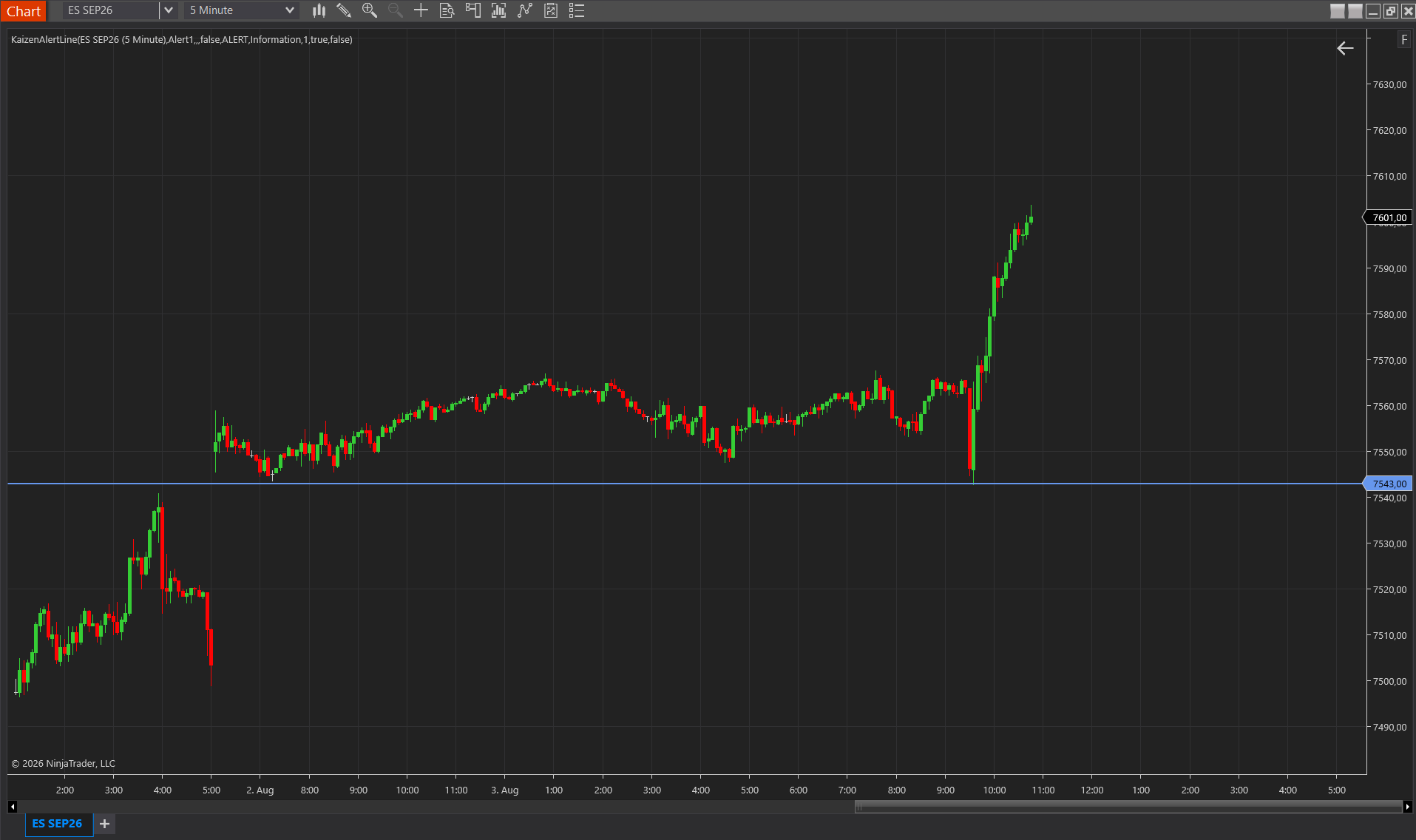
Use case
Draw horizontal lines at your important levels (POCs, VAH/VAL, swing highs/lows, option strike levels, etc.), add a descriptive Tag to each one (right-click the line → Properties → Tag), and forget the chart. When price touches any line, you receive:
- A sound on the PC (Alert1.wav or another configurable .wav file).
- A Telegram notification in the format:
[Kaizen Alert]
Instrument: ES JUN26
Line: SoporteR1
Price: 7587.50
It works for multiple instruments in parallel: just have the indicator loaded on each chart.
Optional tag filtering
By default all horizontal lines on the chart trigger alerts. If you want auxiliary lines that do NOT trigger alerts (for example lines you only draw for visual analysis), set the Line Tag Prefix property with a prefix (for example ALERT-) and only lines whose Tag begins with that prefix will trigger alerts. All other lines are ignored by the indicator.
Telegram setup (one-time only)
1. Create the bot
- In Telegram, search for @BotFather and open the chat.
- Send
/newbot. - BotFather asks for a name and a username (must end in
bot). - BotFather sends you an API token in the format
1234567890:ABCdef..., copy and save it.
2. Create a channel and add the bot as administrator
- Telegram → hamburger menu → New Channel.
- Channel name: whatever you want (e.g. My Kaizen Alerts).
- Type: Public, define a handle (e.g.
@MyKaizenAlerts). - Once the channel is created: tap it → Administrators → Add Administrator → search for your bot by username → grant it the Post Messages permission (the other permissions are not needed).
Note: If the bot does not appear in the administrator search, go to BotFather → /mybots → your bot → Bot Settings → Allow Groups? → it must be enabled.
3. Configure the indicator properties
In the indicator’s properties dialog (group 3. Telegram):
- Use Telegram — True.
- Bot Token — paste the full token from BotFather (the string with a colon in the middle).
- Chat ID — paste
@MyKaizenAlerts(your channel’s handle, with the @).
Settings
0. License
- License Key — Your Kaizen key. If you have already activated other Kaizen indicators on this machine, this field auto-fills.
1. Alert
- Ticks Proximity — Maximum distance in ticks between the current price and the line to trigger the alert. Range 1–1000. Default 1. On ES: 1 = price must be within ≤ 1 tick (0.25 points) of the line; 4 = within ≤ 1 point. Higher = earlier alert but more prone to multiple triggers.
- Line Tag Prefix — If set, only lines whose Tag begins with this string trigger alerts. Empty (default) = all horizontal lines on the chart trigger. Example:
ALERT-→ only lines with a Tag like ALERT-R1, ALERT-Sup1, etc. trigger.
2. Sound
- Use Sound — Enable/disable the sound. Default on.
- Alert Sound — Name of the .wav file in NinjaTrader’s sounds folder (without extension). Default Alert1. To use a custom sound, copy a .wav into
C:\Program Files\NinjaTrader 8\sounds\and put the name here.
3. Telegram
- Use Telegram — Enable/disable sending to Telegram. Default off.
- Bot Token — The bot’s API token, obtained from @BotFather (format:
1234567890:ABC-DEF...). - Chat ID — Message destination: for public channels use the @handle (recommended, e.g.
@MyKaizenAlerts). For private chats (1-on-1 with the bot) use the numeric chat-id obtained fromhttps://api.telegram.org/bot<TOKEN>/getUpdates.
4. Diagnostics
- Log Level — Level of NinjaTrader’s internal log. Default Information. Set it to Alert if you want to see every trigger in Control Center → Log with high priority.
- Debug — Extended logging of the Telegram pipeline (HTTP codes, errors). Enable only during setup to diagnose token or chat-id problems. From v2.2 debug mode additionally logs, roughly every 2 seconds, the state of the alert scan: the price used, how many horizontal lines it finds, and the distance to the nearest one in ticks. That makes the most common “nothing happens” case immediately diagnosable: usually the line was not drawn with the Horizontal Line tool, or the Line Tag Prefix filter is active.
Improved in v2.2: price source
The alert previously worked exclusively off the current ask. On trade-only feeds (no live ask stream) that value stayed empty and the alert never fired, while NinjaTrader’s own last-based alerts did work, the classic symptom of this case. The indicator now falls back to the last traded price automatically.
Cooldown and behavior
- 1 alarm maximum per bar and per line — if price oscillates around the line, you do not get spammed with alarms; the next alarm for that same line can only fire on the following bar.
- Works in real time only (State.Realtime) — during backtest / historical replay the indicator does not trigger anything, it is exclusively a live alerting tool.
- Multiple charts = multiple independent instances — if you have the indicator loaded on ES, NQ and GC simultaneously, each chart watches its own lines and fires with its own instrument in the message.
Sharing the channel with multiple devices
Since the destination is a Telegram channel, not a private chat, you can join the channel from your phone, tablet, Telegram Web, and all devices receive the alerts simultaneously. This is ideal if you also want to receive alarms when you are away from the trading PC.